
Home » Digital Marketing and Advertising Blog » Web Analytics » Common Mistakes When Configuring Events in GA4
Setting up events in Google Analytics 4 seems simple until you start looking at the real data.
At first, everything seems to work: you create an event, see it appear in DebugView, mark it as a key event if applicable, and assume the measurement is sorted. The problem arises later, when you start noticing strange things: forms that are counted twice, events that appear in real time but not in reports, parameters that reach GA4 but then can't be used in a scan, duplicate purchases, or different names for actions that should actually be measured in the same way.
And that's the trap.
Many errors when configuring events in GA4 don't cause Analytics to "stop working." Most are much more insidious: GA4 continues collecting data, reports populate, and everything seems normal. The data is simply wrong.
That type of failure is much more dangerous than an event that is simply not recorded.
If a form doesn't send any events, you know there's a problem. If each form sends two events generate_leadYou can spend months making decisions about an inflated conversion rate without realizing it.
Therefore, when we talk about configuring events in GA4 , the goal shouldn't be solely to get "the event to fire." Four different things need to be checked:
that fires when it should, that doesn't fire when it shouldn't, that sends the correct information, and that we can then use that information to analyze the business.
In this guide, we'll work precisely on that idea. We won't explain GA4 from scratch or provide a generic list of events. We'll focus on the errors that arise when you start building real-world measurement with Google Analytics 4 and Google Tag Manager, how to identify them, and what to review before trusting the data.
Google currently distinguishes between automatically collected events, enhanced measurement events, recommended events, and custom events. Furthermore, it recommends using custom events only when none of the above options accurately represent the interaction you want to measure. This hierarchy is important because using the recommended names and parameters allows you to leverage dimensions, metrics, and integrations already built into Analytics.
There's a fairly simple reason: GA4 is flexible . And that flexibility is precisely one of its advantages.
We can define which interactions we want to measure, add parameters, use Google Tag Manager, work with dataLayer, create custom dimensions, turn certain actions into key events and design an architecture virtually adapted to any website.
The problem is that GA4 also lets us do quite a few things wrong.
There is no window that appears saying:
"This event works, but you've structured it in a way that in six months' time will turn your reports into a minor nightmare."
If you send an event called:
formulario_enviado
GA4 can pick it up.
If another colleague creates:
form_submit
also.
And if someone uses it later:
lead_form_sent
also.
Technically, all three can work perfectly.
Analytically, we have just begun to construct a problem.
When we encounter problems with GA4 events , it's very easy to blame the tool.
“Analytics isn’t measuring well.”
“GTM is duplicating data.”
“DebugView is doing weird things.”
In many cases, however, GA4 is simply picking up exactly what we are sending it.
If a tag fires twice, GA4 records two events.
If we send the value of an empty form, Analytics receives an empty parameter.
If we use three different names for the same action, GA4 records three different events.
He doesn't interpret our intention.
That nuance is fundamental.
Google Analytics is a measurement system, not a coworker who looks at our implementation and thinks, "He probably meant something else."
Therefore, before we ask ourselves:
“How do I create this event?”
It is worth asking:
"What exactly do I want to measure, and what am I going to use that data for?"
That second question prevents a surprising number of errors.
Imagine a service website with a contact form. We want to measure how many users request information. A quick implementation could be to create an event every time someone clicks the button:
Send form
It seems logical. But we're not actually measuring submitted forms. We're measuring button clicks.
It is possible that the user presses the button with empty required fields.
There may be a validation error.
The request to the server may fail.
You can double-click.
There may even be a script that blocks the sending.
And yet our event could still take off.
The report ends by saying that we received 120 leads when perhaps only 97 forms arrived correctly.
That's not a GA4 bug. It's a bug in the event definition. Instead of measuring the intent to submit the form, we should try to measure confirmation that the submission was successful , provided we can technically access that state.
These types of decisions are what separate an implementation that "collects things" from a truly useful measurement.
GA4 uses events to represent interactions or occurrences on a website or application. An event can record anything from a page visit to a click, a search, a login, or a purchase.
Then we can add event parameters to provide context.
For example:
generate_lead
It can tell us that someone has sent a request.
But perhaps we also want to know:
form_name = presupuesto
form_location = contacto_footer
service = diseño_web
That's where the parameters come in.
Google defines parameters precisely as additional information that allows for a more detailed description of the interaction captured by an event. The problem arises when we start creating new events every time we want to record a difference. For example:
lead_diseno_web
lead_seo
lead_ads
lead_mantenimiento
In many cases it would be cleaner to use:
generate_lead
and add:
service = diseno_web
o
service = seo
This way we maintain a consistent event and move the detail to the parameter. This difference may seem small when you're configuring three events. When you have 80, it's no longer small.
A good way to put it is this:
The event answers the question, “What has happened?”
The parameter answers "how, where or with what characteristics has it occurred?"
Example:
Event: generate_lead
What happened?
A lead has been generated.
Parameters:
form_name = contacto
service = seo
page_location = /servicios/seo/
lead_type = presupuesto
Now we have a much more useful structure. We can count all the leads together and, when we need detail, analyze them by service, form, or location.
Google also recommends using the prescribed parameters in its recommended events because they can feed predefined dimensions and metrics and take advantage of current or future Analytics capabilities.
This is one of the errors that causes the most confusion when configuring events in GA4.
You create a parameter.
You can see it perfectly in DebugView.
It seems that everything is working.
Then you'll create a scan and look for that parameter.
It doesn't appear.
And you start to think that GA4 has lost it.
In reality, there is a difference between collecting a parameter and having a dimension or metric with which to analyze it.
Google explains that parameters are the data that is collected, while dimensions and metrics are the structures that allow them to be analyzed within Analytics.
When using certain custom parameters and wanting to analyze them in reports, it may be necessary to create a custom dimension with event scope . For example:
Event:
generate_lead
Parameter:
service = seo
GA4 may be receiving correctly service.
However, if we want to use "Service" as a dimension in explorations or certain reports, we'll need to register that parameter as a custom dimension when an equivalent predefined dimension doesn't already exist. Google specifically recommends against creating a custom dimension if a standard dimension already exists that covers that information.
Here's another useful rule:
Before inventing a dimension, check if GA4 already has one.
There's no point in using up space in the custom settings to recreate data that Analytics already understands natively.
A misconfigured GA4 event is not simply a technical problem. It can change a business decision.
Imagine a Google Ads campaign that apparently generates 200 conversions. If 40 of them come from a duplicate event, the cost per lead seems much better than it actually is.
Perhaps we decided to increase the budget.
Perhaps we reduced investment in another campaign that was actually getting cheaper leads.
Perhaps we conclude that a landing page converts better when it is only sending the event twice.
That's where an analytical implementation ceases to be a purely technical matter. Measurement becomes a determining factor.
which campaigns do we maintain,
which pages did we modify,
which traffic sources do we value,
which products do we promote,
which budgets do we increase,
and, in general, what we think works.
Therefore, the appropriate question is not:
"Is the event starting?"
but:
“Can I trust what this event represents?”
These are very different questions.
Before creating any event, we should be able to answer:
What action are we trying to represent?
Not which button we are looking at, but what behavior we want to measure.
Is there already an automated, enhanced measurement, or recommended event that represents this action?
Google recommends using custom events when existing events don't fit the use case.
Do we need a new event or just a parameter?
This question avoids turning each variant of an action into another event.
What information will we need next to analyze it?
If we know we want to separate leads by service, we may need to prepare a parameter from the beginning. service.
How are we going to validate that the event represents a real action?
It's not enough to simply verify that it fires. We need to test correct cases, incorrect cases, and edge cases.
This last part is often forgotten.
We tested the form and it worked.
Perfect.
But we should also try:
a form with an error,
a double click,
go back,
recharge,
send from mobile,
accepting or rejecting certain categories of consent when this affects implementation,
and any other behavior that could reasonably change the shot.
That's where many of the GA4 event errors appear that we never detected during a quick test.
You want to measure | Event | Parameter |
|---|---|---|
A form is sent | generate_lead | form_name |
A product is purchased | purchase | transaction_id, value |
A search is performed | search | search_term |
Log in | login | method |
Content is selected | select_content | Content type or identification |
This is where things get really tricky. When an event doesn't reach GA4, the problem is usually obvious. You see it, you detect it, and you fix it. The danger lies with misconfigured GA4 events that do reach the event feed , because they generate seemingly valid data. The report fills up, the graph rises, conversions appear… and nobody suspects that the measurement is flawed.
Therefore, in this section we will not focus on "visible" errors, but on those that can alter the reading of the business without Analytics raising any alarm.
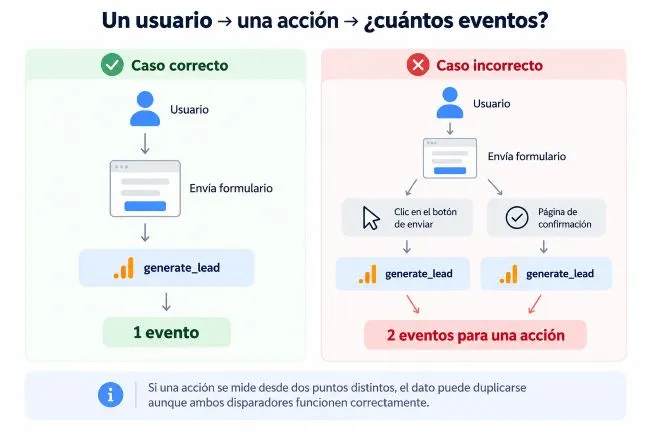
This is probably one of the most frequent mistakes when configuring events in GA4 . And also one of the most costly. A duplicate event means that the same actual user action ends up being recorded two or more times.
Imagine a user submits a form only once. The report shows:
generate_lead = 2
GA4 doesn't recognize that those two events correspond to a single person performing a single action. Analytics registers two events. The data is inflated from the outset.
The causes are varied.
One of the most common is to measure the same action from two different systems.
For example, you have an event set up in Google Tag Manager and, at the same time, a WordPress plugin automatically sends another event to GA4.
The user clicks once.
GTM sends:
generate_lead
The plugin sends:
generate_lead
Result: two events.
This also happens when we activate automatic GA4 functions and then try to manually measure exactly the same thing.
Enhanced measurement can automatically collect certain events, such as scrolling, internal searches, outbound clicks, or file downloads, depending on the configuration. If we manually implement these same events without first checking what Analytics is already collecting, we risk duplicating data.
Another classic scenario appears with forms.
Let's suppose we create an event:
generate_lead
when the send button is pressed. And then another one:
generate_lead
when the confirmation message appears.
If the form is submitted successfully, both events are triggered. From our perspective, there is still only one lead. From GA4's perspective, there are two identical events.
In e-commerce, the problem is even more serious. An event purchase Duplicate entries can distort revenue, number of purchases, ROAS, and any sales-related analysis.
Google uses the parameter transaction_id Specifically, to identify a particular transaction. A proper ecommerce implementation should send unique and consistent identifiers for each purchase.
Here's a very useful test. If the same transaction can resend the event purchase Simply because the user reloads the thank you page, we have a problem.
The event should represent:
“This purchase has taken place.”
No:
“The user has revisited the URL where we showed that the purchase occurred.”
The difference is small in implementation and huge in data.
The first place I would look is DebugView . It performs a single test action.
One click.
A form.
A trial purchase.
A reproduction.
And observe how many times the event appears. If you perform a single action and see:
generate_lead
generate_lead
You already have a pretty clear clue.
Next, we should check GTM in Preview mode to see which tags are being triggered. If we see two different tags sending the same event, we can locate the source. It's also a good idea to check:
plugin,
scripts added directly to the code,
Google Tag Manager,
third-party integrations,
GA4 configuration,
and any platform that can send data using Measurement Protocol.
GA4 is quite permissive with names. That can be an advantage during the first few weeks of implementation. And a nightmare six months later.
Imagine that different people have configured these events:
form_submit
formulario_enviado
lead_form
contact_form
generate_lead
They all aim to represent essentially the same action. Now imagine trying to build a lead report.
Which event do you use? All five? Just some? Are there real differences between them or are they simply different conventions?
This is one of those errors when creating events in GA4 that doesn't break anything technically, but greatly degrades the quality of the analysis.
Google maintains a list of recommended events with defined names and parameters for common actions. For example:
login
sign_up
search
generate_lead
purchase
add_to_cart
begin_checkout
When the recommended event accurately represents the action, it's usually worth using it instead of inventing a new name. This isn't because Google prohibits creating custom names, but because following the standard structure facilitates interoperability with reports, dimensions, and future Analytics features.
If someone requests commercial information, use:
generate_lead
is usually more coherent than:
cliente_contacta_por_formulario
Although the second one is understandable. In analytics, we look for names that are: consistent, reusable, documentable, and easy for anyone who joins the project later to interpret.
This is another common mistake.
Let's assume we have four forms:
Contact Form,
SEO budget,
web budget,
audit.
We could create:
contact_form_submit
seo_form_submit
web_form_submit
audit_form_submit
Works.
But we're using the event name to store a characteristic of the event . It might be cleaner to use:
generate_lead
and add:
form_name = seo
form_name = web
form_name = auditoria
This is how we maintain a stable logic.
What has happened?
generate_lead
Where?
form_name
Which service?
service
Which page?
page_location
The architecture becomes much more scalable.
It's important to introduce a nuance here. We shouldn't always reduce absolutely everything to five universal events.
If two actions represent genuinely different behaviors for the business, they may warrant different events. For example:
generate_lead
y
sign_up
They don't necessarily mean the same thing.
A user who requests a quote is a lead.
A user who creates an account is registering.
Merging them simply because "they are both forms" worsens the model.
Therefore, the question should never be:
“Can I fit everything into the same event?”
But:
“Do these actions really represent the same behavior?”
This error is especially frustrating because everything seems to be working perfectly.
You create an event:
generate_lead
with parameters:
form_name
service
lead_type
user_type
They all appear in DebugView. Perfect.
Days later you want to build a report by serviceYou can't find the dimension. And you start to think that Analytics hasn't collected the data. In reality, it may be coming in correctly.
The problem is that a custom parameter does not automatically become a custom dimension available in all reports.
When we need to use certain custom parameters for analysis, we usually need to register a custom dimension with the appropriate scope.
Google clearly differentiates between collecting parameters and creating custom dimensions or metrics to be able to use them in reports and explorations.
There's also the opposite extreme: registering every conceivable parameter as a custom dimension. That's not a good idea.
GA4 has limits on dimensions and custom metrics depending on the property type, and an architecture full of useless dimensions ends up being difficult to maintain.
Before recording a dimension, we should ask ourselves:
Am I really going to use this data to analyze anything?
If the answer is "probably never", then perhaps it's not worth taking up a personalized space.
We also need to check if GA4 already provides an equivalent standard dimension. For example, create:
custom_page_url
when we already have page_location
It would be quite difficult to justify.
There's another, less obvious problem. The parameter exists. But sometimes it arrives:
service = seo
other:
service = SEO
other:
service = posicionamiento
and others:
service = posicionamiento_web
From a human perspective, we understand perfectly that everyone is talking about the same service. GA4 doesn't. For Analytics, they are different values.
During an exploration, we might find four rows:
SEO
Seo
positioning
web positioning
This is not a technical error. It's a normalization error. That's why dynamic values must also be documented.
Deciding is not enough:
“We’re going to send the service.”
A decision must be made:
“What specific values can it have service and how will they be written?”
For example:
seo
diseno_web
google_ads
mantenimiento
Without accents, without spaces, and with a consistent convention.
Problematic implementation | Better approach |
|---|---|
lead_seo | generate_lead + service=seo |
lead_web | generate_lead + service=web_design |
lead_ads | generate_lead + service=google_ads |
form_footer | generate_lead + form_location=footer |
home_contact_button | Event based on action + page_location or location parameter |
It's not about reducing events for the sake of reducing them. It's about correctly separating the action from the context.
This mistake is very common because for years we used the term conversion and now GA4 works with key events within Analytics.
An event is something that happens.
A key event is an event that we have decided to consider especially important in measuring the success of the business.
Not all actions should become key events.
Let's take an example. We can measure:
scroll
file_download
view_search_results
generate_lead
purchase
These are all events. But for a service business, it might make sense to mark the following as key events:
generate_lead
and perhaps some additional, truly strategic action.
Schedule scroll Treating it as a key event simply because we can do it doesn't contribute much.
When virtually any action is treated as a key event, the metric loses its meaning.
Imagine a report where “conversions” include:
downloads,
scrolls,
clicks on phone,
video views,
forms,
visits to specific pages.
The number may be enormous. But what does it really mean? Very little.
A key event should answer a specific business question:
Does this action represent an outcome we truly value?
In ecommerce, this is evident with purchase.
In lead generation it can be generate_lead.
On a SaaS platform it could be sign_up, a free trial or a more meaningful subsequent action.
The selection should depend on the business model, not on how many events we have available.
The opposite is also true. We have it perfectly configured:
generate_lead
but we never marked it as a key event.
Analytics captures the event, but certain metrics and integrations don't treat it as a core business action. This can be confusing, especially when GA4 is used in conjunction with Google Ads.
Therefore, after verifying that the event is working correctly, we need to make a conscious decision:
Does this event represent a key outcome or simply behavior?
This error deserves its own section because it seems innocent. You need to measure a record. You create:
registro_usuario
Perfect. Except that GA4 already has:
sign_up
You need to measure a search. You create:
busqueda_web
But it exists:
search
You need to measure a contact request. You create:
contacto_cliente
And perhaps generate_lead It perfectly represents the action.
Google recommends using recommended events and their parameters when they match the behavior we are measuring, and resorting to custom events when there is no suitable alternative.
Because GA4 doesn't just see names. The recommended events are part of a semantic model defined by Google. For example, in e-commerce there is a specific structure around:
view_item
add_to_cart
begin_checkout
purchase
with parameters such as:
currency
value
items
transaction_id
If we decide to replace purchase per:
venta_finalizada
We can send the event.
But we are unnecessarily moving away from the structure that Analytics understands best.
When the action we want to measure is not represented by any automatic, enhanced measurement, or recommended event.
Imagine a platform where users can:
create_project
There isn't necessarily a recommended event that exactly represents that action. That's where a custom event makes perfect sense.
The key is that it is a conscious decision , not simply the result of being unaware that another event already existed.
When the measurement passes through Google Tag ManagerThe margin of error increases because it's no longer just a single piece involved. We have the event we want to measure, the label that sends it, the trigger that decides when it should fire, and often variables or information coming from the dataLayer.
The advantage is enormous: we can build a very flexible measurement system without directly modifying every part of the code. The disadvantage is that a poorly designed container can send perfectly valid data… at the wrong time.
Google states that, to work with GA4 from Tag Manager, a properly configured Google Tag Manager tag must first be in place, and from there, the corresponding events can be sent. It also notes that this configuration can handle automated events and enhanced measurement, which is something to review before manually implementing similar actions.
An activator answers a very specific question:
When should this tag be executed?
If the answer is poorly formulated, the event will also be poorly formulated.
One of the most common examples is measuring a click using an overly generic trigger. We want to know when someone clicks the "Request a Quote" button, but we set a condition that applies to all buttons on the page.
Result: the event works. The problem is that it works too much.
Imagine a label:
generate_lead
with an activator based solely on:
Click Classes contiene button
If that class is reused in the menu, in a CTA, in the form, and in other components, we can end up registering leads where there was only navigation.
The trigger should be linked to a specific enough characteristic to identify the action we actually want to measure: an ID, a unique class, a specific destination URL, or even better, an event sent to the dataLayer when the action has finished successfully.
Here again the difference between measuring an interface and measuring a result appears.
For a form, for example, detecting a "Submit" click can be more unreliable than listening for an actual submission confirmation. If the form uses AJAX, the page might not even need to reload, so relying solely on a thank-you URL won't always be sufficient either.
The correct trigger depends on the actual functioning of the website.
Another common mistake in Google Tag Manager with GA4 is having a perfectly configured tag, but allowing its trigger to be executed multiple times during the same action.
Let's assume that a website opens a modal after successfully submitting a form and that we have configured the event using the appearance of that element.
The user submits the form.
The modal appears.
generate_lead
Right.
But for some reason the component is re-rendered twice.
GTM can interpret both changes as new fulfillments of the condition and send:
generate_leadgenerate_lead
Even if the user has only submitted one form.
Something similar can happen on websites built with JavaScript, single-page applications, or dynamic components. The interface changes several times, but conceptually the user has only performed one action.
Therefore, simply verifying that "the tag fires" is not enough. We also need to check how many times it fires and in what sequence.
Tag Manager's Preview mode is especially useful for this, because it allows you to observe what internal events are occurring and which tags are triggered in each one.
One test we perform far too infrequently is to repeat the action several times in different ways: submit successfully, trigger an error, go back, close the modal, open it again, or navigate without reloading the page.
That is precisely where the duplications appear.
We can also find a correct implementation in GTM and another equally correct implementation outside of GTM.
And together they cease to be correct.
For example:
generate_lead via a plugin.generate_lead upon detecting the confirmation.Three systems observing the same action.
None of them are technically broken.
But the result is tripled.
Before creating a new tag, it's helpful to know what measurement layers already exist on the website . In legacy projects, it's especially important to review the code, plugins, GTM, and third-party integrations before adding anything.
When we find duplicate events in GA4 , our first question should be:
Who is sending this event?
No:
Where can I add another trigger to fix it?
El dataLayer It is one of the most powerful tools in Google Tag Manager because it allows the website to communicate structured information to the container.
Instead of trying to "read" what appears visually on a page, we can send something like:
					dataLayer.push({
  event: 'generate_lead',
  form_name: 'presupuesto',
  service: 'seo'
});
GTM listens to the event generate_lead, collects the values and sends them to GA4.
Conceptually, it's a much more robust implementation than trying to deduce what happened by looking at CSS classes or button text.
The problem arises when the dataLayer It is not consistent.
Imagine that some pages send:
service: 'seo'
and others:
servicio: 'seo'
Or that some use:
form_name
and others:
formName
For one person, these are small variations.
For Tag Manager, these are different variables.
The label may end up sending empty parameters, undefined or different values depending on the page.
And often we won't see a visible error. We'll simply find reports full of values later on. (not set).
Another common problem occurs when the value exists, but was not yet available when GTM attempted to read it.
For example, a variable of the dataLayer It is refilled after the label has been fired.
The sequence would be:
Too late.
GA4 has already received the event.
Therefore, when we depend on dynamic information, it is advisable that the data and the event that activates the tag are sent in a coordinated manner.
It's much more solid:
					dataLayer.push({
  event: 'form_success',
  form_name: 'contacto',
  service: 'diseno_web'
});
which is to send the event first and hope that the variables appear later.
Google also distinguishes between configuration parameters and event parameters: the latter are precisely those that allow sending additional information associated with a specific interaction.
When an implementation grows, there is a temptation to send virtually all available information "just in case it is needed someday".
It's not always a good idea.
Un dataLayer It should have a clear, consistent, and documented structure. If each developer uses different names or adds data without a common logic, the measurement becomes difficult to maintain.
Furthermore, we must be especially careful with personal data. Just because we can technically capture something doesn't mean we should send it to Analytics.
The goal is not to have the dataLayer as large as possible.
The goal is for it to contain the information necessary for a useful and well-governed measurement.
Here I would add a small practical check.
Before publishing any new event in GTM, I would do at least four tests:
Correct case: we perform exactly the action we want to measure and verify that it appears once.
Incorrect case: We attempted to complete the action in an invalid manner and verified that the event was not logged.
Repetition: We repeat the action to verify that each execution generates exactly the expected number of events.
Alternative navigation: we test from another page, device or route when there is a possibility that the logic may change.
Then I would check three levels:
Tag Manager Preview → Has the correct tag been triggered?
GA4 DebugView → Has the event arrived?
Parameters → Have the correct values arrived as well?
That order helps a lot in locating the fault.
If the label does not appear in Preview, the problem is usually before GA4.
If it appears in Preview but not in DebugView, we need to check the submission or the configuration.
If you reach DebugView but the parameters are empty, we probably need to look at variables or dataLayer.
Problem | First place to check |
|---|---|
The label doesn't trigger | Activator in GTM |
It fires twice | Preview and activator conditions |
Event arrives without parameters | Variables and dataLayer |
Event arrives in GA4 but with incorrect name | Label settings |
Duplicate event | GTM, plugins and other implementations |
Values appear as (not set) | Custom parameters and dimensions |
Just because an event appears in DebugView doesn't mean it will immediately appear in standard reports. DebugView is used to verify in real time that GA4 is receiving the event and its parameters, while reports can take 24 to 48 hours to process the data.
Therefore, if you have just created an event and you see it correctly in DebugView, it is not advisable to assume that there is an error just because it does not yet appear in the reports.
If it still doesn't appear after that time, then it's worth checking four things: that you're looking at the correct property and date range, that there are no active filters, that the event is actually marked as a key event if you expect to see it as a conversion, and that the custom parameters you want to analyze are correctly registered as custom dimensions where necessary.
Test traffic can also be a factor. If you're working with debug mode or developer filters, you might see the event in DebugView, but those tests might not end up being mixed with the regular report data.
The important idea is this:
DebugView confirms that the event arrives; reports confirm how it is processed and made available for analysis.
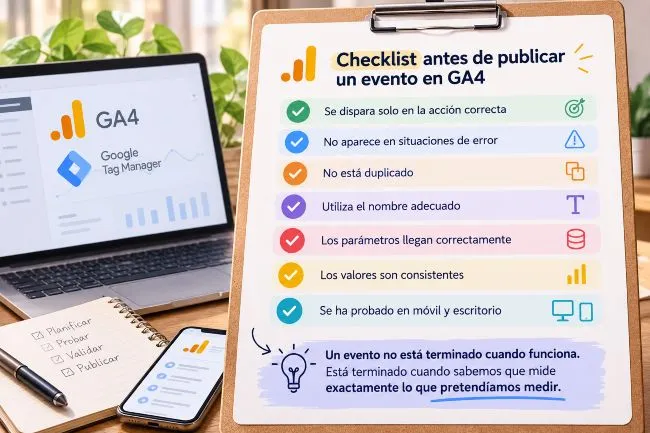
Before considering an event in GA4 complete, it's advisable to check more than just whether it appears in DebugView. A properly configured event must meet three conditions: it should fire when appropriate, it should only fire once, and it should send the correct information.
That small control prevents many of the problems that later end up contaminating reports, key events, or Google Ads campaigns.
The first step is to test the event in Google Tag Manager Preview or with the debugging tools we use.
It's not enough to simply perform the correct action. It's also important to test what happens when the user doesn't complete the action.
For example, if we are measuring a form, we should check:
Si generate_lead It appears when the form fails; we are not measuring a lead, we are measuring an intent.
Next, open the event in DebugView and check that the parameters are arriving as expected.
If we have:
generate_lead
with:
form_name = presupuestoservice = seo
We should verify that these values are consistent and that variants such as the following do not appear:
SEOseo_webposicionamiento
if they all represent exactly the same thing.
This control may seem small, but it prevents ending up with fragmented reports due to simple differences in nomenclature.
It is also a good time to confirm that we are using a GA4 recommended event when a suitable one exists and that the parameters we want to analyze later are correctly set up.
The last test is quite simple: perform an action and count how many events appear.
An actual action should generate the expected number of events.
If you submit a form once and two appear generate_leadYou need to check GTM, plugins, scripts, or integrations that may be sending the same information.
It's also a good idea to compare behavior across different pages or devices. An event might work perfectly on desktop but fail on mobile because the button uses a different class, the form structure changes, or the confirmation process is different.
In short, before publishing we should be able to confidently answer these questions:
Does it trigger when it should? Does it fail to trigger when it shouldn't? Does it only appear once? Are the parameters correct?
If all four answers are yes, then we already have a fairly reliable basis.
When you detect a misconfigured event in GA4, the important thing is to correct the cause and not just mask the result in the reports.
If the problem is with the trigger, fix the trigger. If the event is duplicated, locate the source of the two signals. If the parameter is incorrect, correct its value before sending it. The closer to the source we resolve the error, the cleaner the measurement will be.
It's also wise to make changes carefully. Renaming an event, for example, doesn't change the historical record: older data will continue to use the previous name. Therefore, if you make a significant change, it's worth noting the date to avoid later misinterpreting an artificial break in the reports.
And, if we're working with Google Tag Manager, any changes should be tested in Preview mode first before publishing. Changing one thing at a time makes it much easier to verify if we've actually fixed the problem.
Rule of thumb: fix at source, test before publishing, and document important changes.
The most common causes are in the triggering itself: the Google Tag Manager trigger is not met, the tag is not executed, consent is blocking Analytics, or the event is being sent with an incorrect configuration.
The best order to check it is simple: first GTM Preview, then DebugView, and finally the reports. This way you'll know exactly where it stops working.
Because DebugView displays information virtually in real time, whereas standard GA4 reports require processing time.
If you've just configured the event and it's showing correctly in DebugView, wait before making any changes. If it still doesn't appear, check the filters, date range, property, and event settings.
Perform a single action and observe how many times the event appears in DebugView or Google Tag Manager Preview.
If you submit a form once and two events occur generate_leadYou need to check if the same action is being measured from GTM, a plugin, custom code, or another integration at the same time.
No. Before creating a custom event, it's advisable to check if GA4 already has an automatic, enhanced measurement, or recommended event that represents that action.
Using recommended events when they exist helps maintain a more consistent structure and avoids ending up with different names for equivalent actions.
An event records an interaction or action. A key event is an event that we consider especially important for business objectives.
For example, a scroll It can be a useful event for analyzing behavior, while generate_lead It could be configured as a key event if it represents a business request.
The mistake lies in turning practically everything into a key event, because then that classification stops providing truly useful information.
Because receiving a parameter and being able to analyze it as a dimension are not always the same thing.
If you've created a custom parameter, you might also need to register it as a custom dimension to use it in certain reports or explorations. Before doing so, check that GA4 doesn't already have an equivalent standard dimension.
Whenever technically possible, it is preferable to measure the actual result.
Clicking "Submit" does not necessarily mean the form has been submitted successfully. There could be a validation error, a technical glitch, or even a double-click.
If you want to measure leads, try to record the confirmation of the submission, not just the user's intention to send it.
Changing an event now does not automatically overwrite what was previously collected.
If we rename lead_form , the generate_leadFor example, older data will still exist under the previous name. Therefore, it's advisable to document any significant changes with their date and take this into account when analyzing long periods.
No.
GA4 can automatically collect events, and there are other implementation methods as well. However, Google Tag Manager offers much more control when we need to measure custom actions, work with dynamic variables, or manage multiple tags from a single platform.
The problem is not using GTM, but doing so without a clear structure of names, triggers, and parameters.
There is no ideal number.
The important question is whether each event responds to a real need for analysis. Measuring dozens of clicks simply "just in case" usually generates more noise than useful information.
A good implementation is not the one that collects the most data, but the one that allows you to confidently answer the important business questions.
Errors in configuring events in GA4 don't always cause Analytics to stop measuring. In fact, the most dangerous errors are the opposite: those where data continues to arrive, but misrepresents what's actually happening.
A duplicate event, an overly broad trigger, an inconsistent parameter, or a poorly defined action can disrupt reports, key events, and business decisions without any obvious warning.
Therefore, configuring events in GA4 shouldn't just be about making "the event appear." It's about ensuring it fires at the right time, only once, with the correct parameters, and with a structure that makes sense when it comes time to analyze the data.
The best way to work is quite simple: measure only what really provides information, use recommended events when they fit, always validate before publishing, and maintain a consistent naming convention.
GA4 and Google Tag Manager offer a great deal of scope for customizing measurement. This flexibility is an advantage, but it also requires a certain level of discipline. The better the implementation is planned from the beginning, the less time we'll have to spend later figuring out why conversions have mysteriously doubled or why a report doesn't reflect reality.
Because, in the end, measuring more doesn't mean measuring better.
Analytics is only useful when you can trust the data you are using to make decisions.


Related Entries